For administrators
Start your first 360
Invite every leader from one screen and see whose results are ready.
A 360 is one leader rating themselves, then being rated by the people they work with. You start it for every leader at once, from one screen. Nobody installs anything or creates an account.
Want questions of your own? Add them before you add any leaders.
Add the leaders
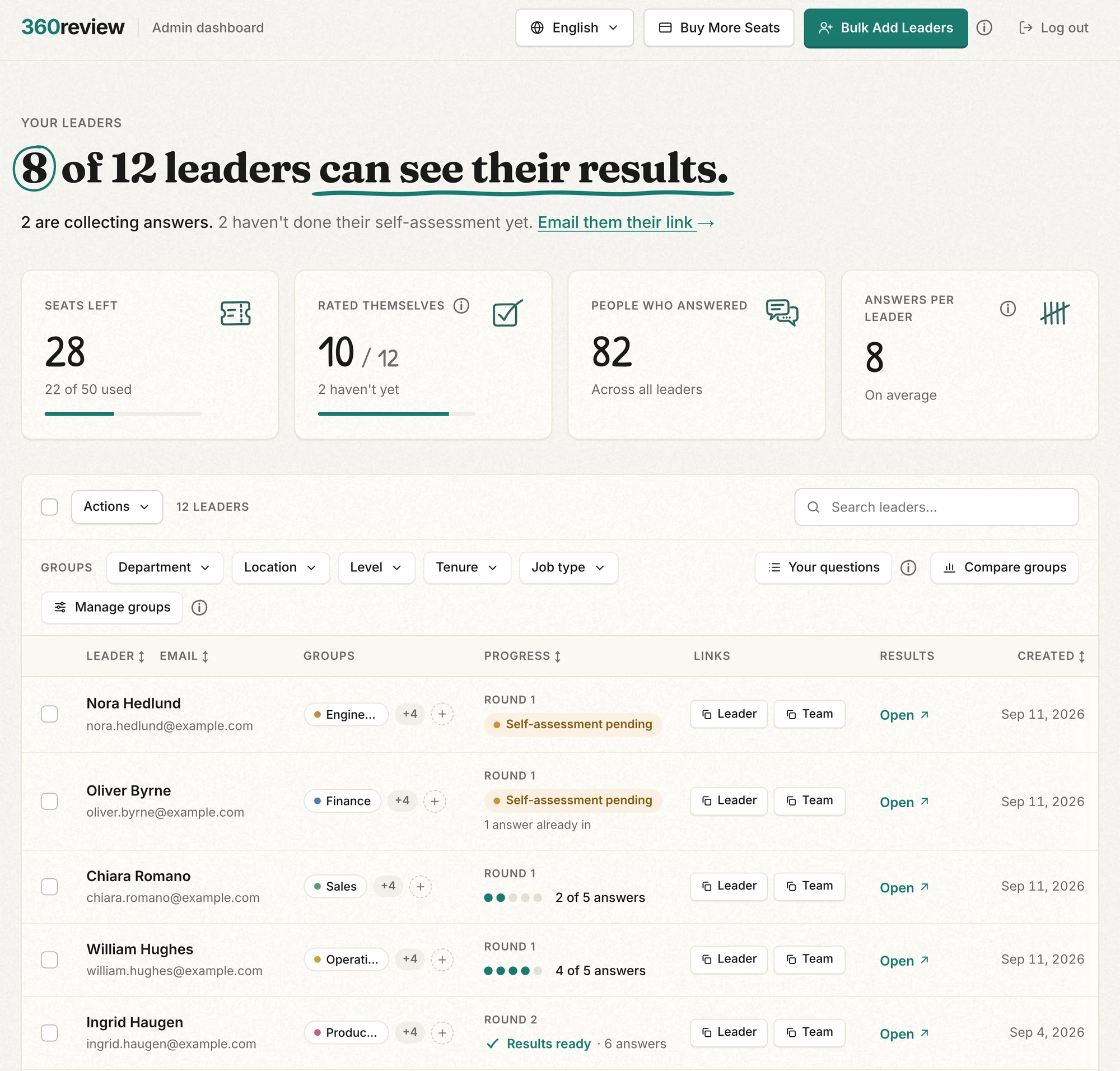
- Open the admin dashboard from the email you received after buying seats, and press "Bulk Add Leaders".
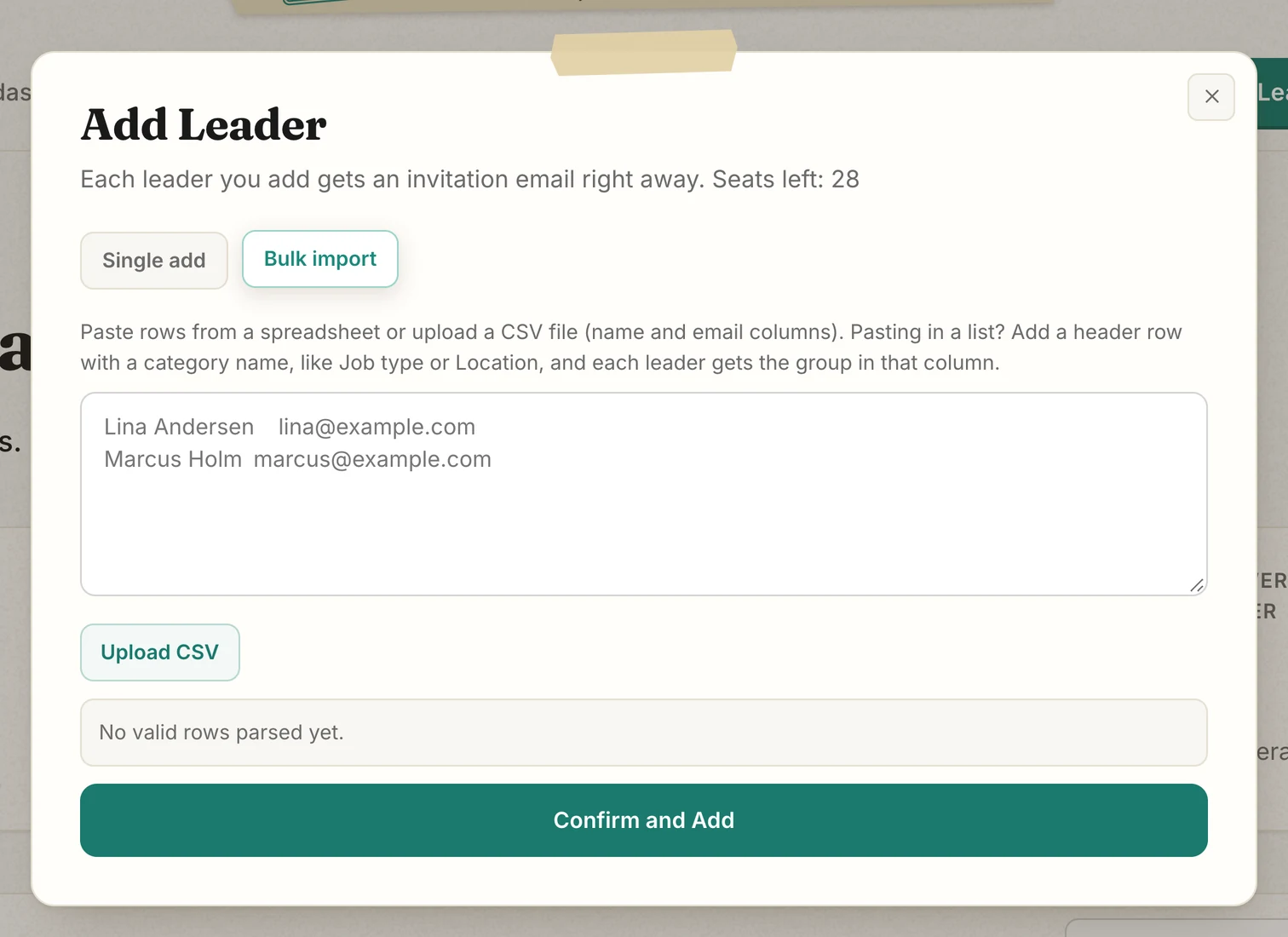
- Paste names and emails from your spreadsheet, one leader per row, or press "Upload CSV".
- To group leaders, add a column such as Department, and make the first row the column names: Name, Email, Department.
- Press "Confirm and Add". Each leader uses one seat and is emailed at once, so add leaders on the day they should start.
What the leader receives
The email is in English and opens the leader's self-assessment, which takes about 90 seconds. When that is done, the leader gets the team link to forward to colleagues, who each need about 5 minutes and can answer in any of 12 languages.
The leader sees nothing until 5 people have answered. Then they see scores and a summary of the comments, never who said what.
Follow the answers
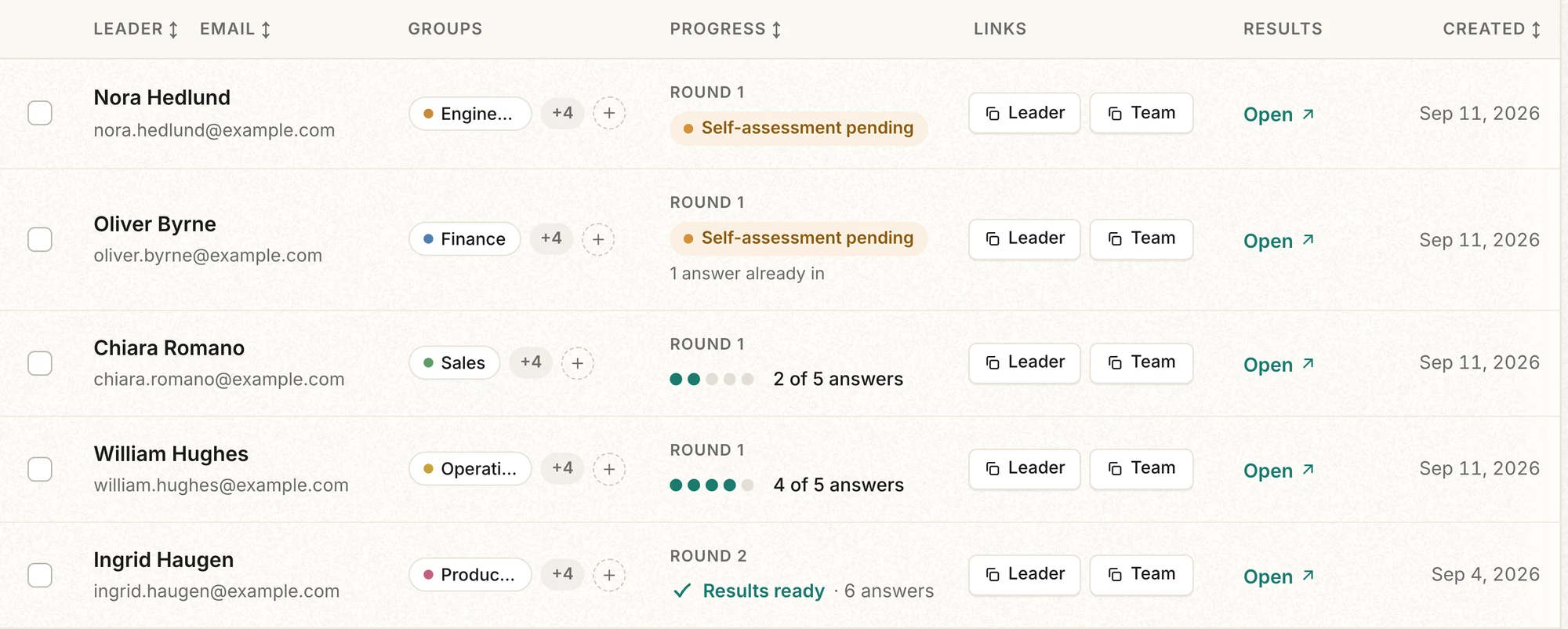
- "Progress" counts answers. The dots fill as answers arrive, and at 5 the row reads "Results ready", when the leader's results open. "Round 1" is their first 360.
- The "Leader" and "Team" buttons under "Links" copy each link, in case an email went missing. "Leader" links to the self-assessment, later to the dashboard. "Team" is for colleagues.
- "Open" shows you the leader's dashboard exactly as they see it. You see the same patterns they do, and no individual answers.
- "Active leaders" counts only leaders who have done their self-assessment. The rest show as pending.
A 360 stays open until you start the leader's next one. Nobody is reminded to answer, so check "Progress" and nudge leaders with few answers.
For a screen-by-screen walkthrough of the whole dashboard, see the dashboard walkthrough. You can also click around a working copy in the admin demo.