For administrators
Group leaders and compare them
Sort leaders by department, location or level, filter the list, and see how the groups score against everyone.
With more than a handful of leaders, the interesting question is rarely about one person. It is whether Sales scores differently from Engineering, whether first-line managers trail senior leaders on trust, whether the Berlin office moved from one 360 to the next. Groups answer that.
Set up the categories
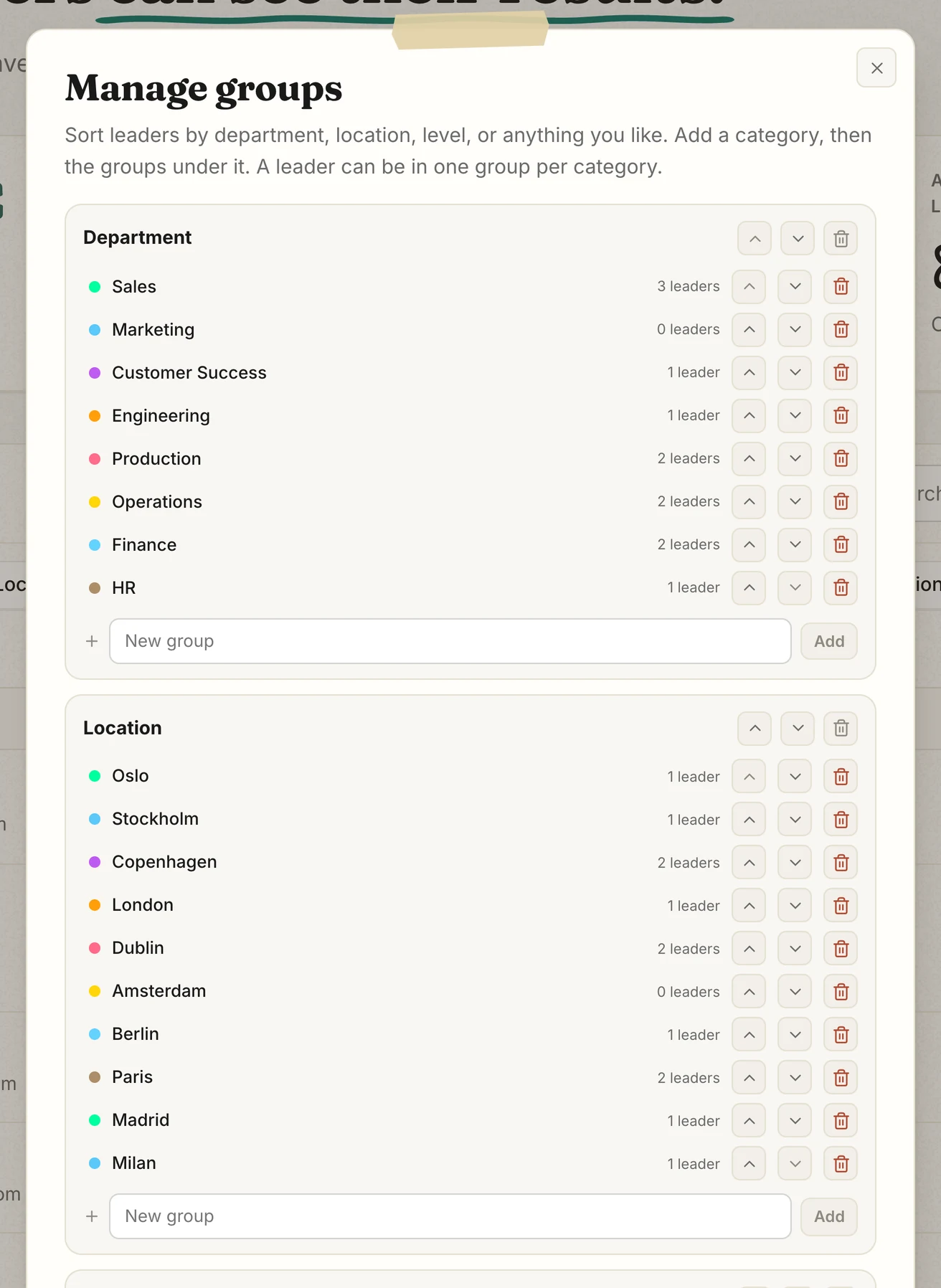
- Press "Manage groups". Every account starts with 3 categories: Job type, Location and Level. Rename them, or add your own, such as Department. Importing a Department column creates it for you.
- Under each category, add the groups: Sales, Marketing, Finance. Rename anything by clicking it. Deleting a group lets you move its leaders to another group or leave them with "No group".
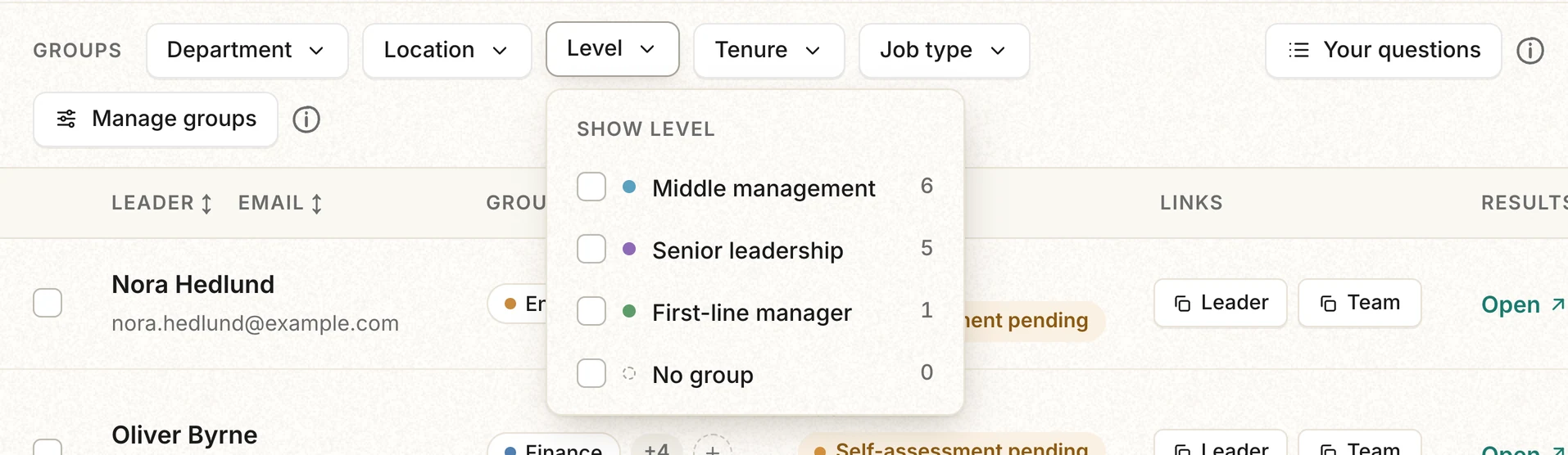
- Close the window. Each category now has a filter button above the leader list.
Put leaders in groups
- One at a time: click the group label on a leader's row, or the plus next to it, and pick a group.
- Many at once: tick the leaders, open "Actions", choose "Set group", then pick the category and the group.
- While importing: add a column such as Department, and each leader arrives already grouped.
Compare the groups
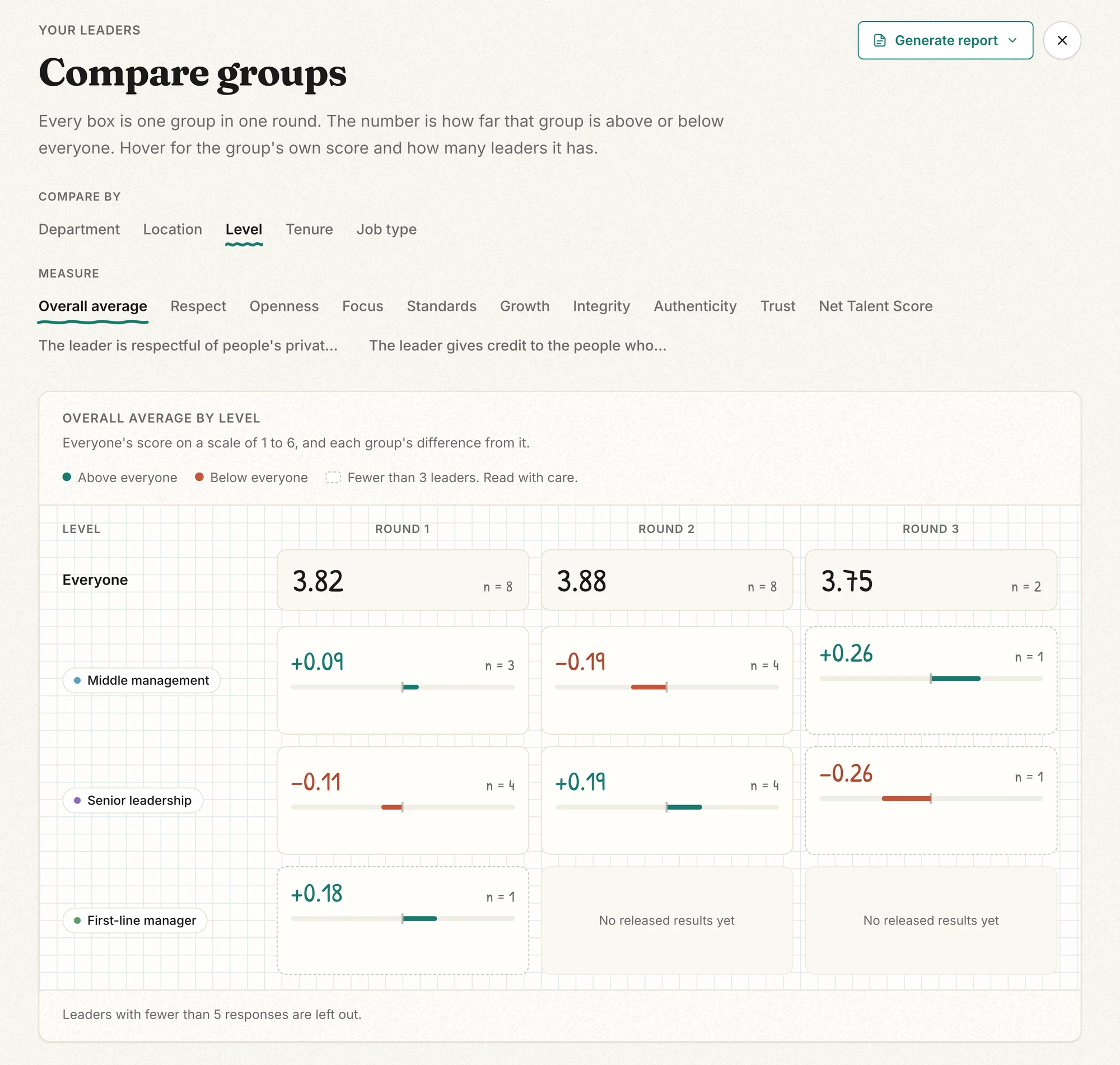
Press "Compare groups", then pick a category and a measure: the overall average, one of the 8 dimensions, the Net Talent Score (would people recommend working for this leader), or one of your own questions. Each column is one 360, so "Round 1" holds every leader's first. A box shows how far its group is above or below the "Everyone" row, and "n" is how many leaders it holds. Hover a box for the group's own score.
- A faded box holds only 1 or 2 leaders. With 1, its number is that leader's own result.
- A leader whose 360 has fewer than 5 answers is left out, the same way their own results are held back.
- Moving a leader changes only their current and later 360s. A 360 closes when the leader's next one starts.
When a comparison is worth sharing, download it as a PDF. The dashboard walkthrough shows these screens in order, and the admin demo lets you try the comparison on a sample organization.